
Troubleshooting Common Humanoid Robot Issues: Complete Guide
Your robot won't start? Navigation problems? Battery draining fast? Solutions to the most common home robot issues.
Robots4Home Team
robots4home.uk
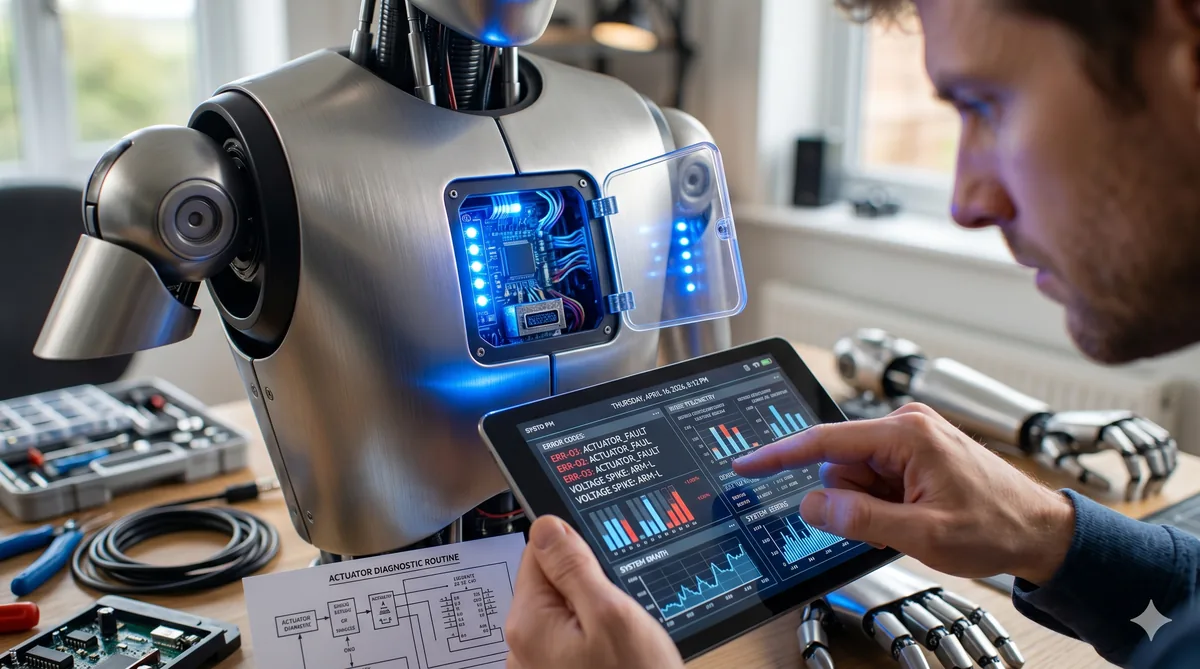
Even the most advanced humanoid robots run into the occasional hiccup. Whether your robot has stopped responding to voice commands, keeps bumping into furniture, or simply refuses to switch on, we have put together this comprehensive troubleshooting guide to help you resolve the most common issues at home — no engineering degree required.
Before we dive in, we recommend keeping your robot’s user manual to hand and ensuring you have completed the initial setup process correctly. Many issues we see stem from skipped setup steps or outdated firmware.
Robot Won’t Power On
A robot that refuses to start is understandably alarming, but it is one of the most common issues we hear about — and usually one of the simplest to fix.
Check the charge level. The most frequent culprit is a flat battery. Place your robot on its charging dock or connect the charging cable and wait at least 30 minutes before attempting to power on again. Look for a charging indicator light; if none appears, try a different power outlet to rule out a socket issue.
Hold the power button longer. Many humanoid robots require a long press of five to ten seconds rather than a quick tap. Some models have a recessed power button that needs a firm, deliberate press. Check your manual for the exact hold duration your model requires.
Perform a factory reset. If the robot still will not respond, a factory reset may be necessary. This typically involves holding a combination of buttons (often power and volume down) for 15 seconds or more. Be aware that a factory reset will erase personalised settings, so treat this as a last resort. You will need to repeat the setup process afterwards.
If none of these steps work, the issue may be hardware-related — see our section on when to contact the manufacturer below.
Navigation Problems
When your robot starts walking into walls, struggling to find its charging dock, or refusing to move between rooms, navigation is likely the issue.
Recalibrate the navigation system. Most robots have a recalibration option in their companion app settings. This forces the robot to rebuild its understanding of its environment from scratch. Place the robot in the centre of an open room and initiate the calibration routine.
Clear the saved map. Over time, saved maps can become corrupted — especially if you have moved furniture or renovated. Deleting the existing map and allowing the robot to remap your home fresh often resolves persistent navigation failures.
Check the sensors. Dust, fingerprints and pet hair can accumulate on LIDAR sensors, cameras and infrared emitters. Give them a gentle wipe with a dry microfibre cloth. Avoid harsh cleaning products, as these can damage sensor coatings. For a full walkthrough on keeping sensors in top condition, see our maintenance guide.
Battery Draining Too Quickly
If your robot’s battery life has noticeably shortened, several factors could be at play.
Close background processes. Just like a smartphone, your robot may be running unnecessary background tasks. Check the companion app for any active routines, scheduled patrols, or third-party skills that could be consuming power silently. Disable anything you do not actively use.
Watch the temperature. Batteries perform poorly in extreme temperatures. If your robot operates in a particularly cold conservatory or a sun-drenched room, battery drain will accelerate. Try to keep your robot in rooms between 10°C and 30°C for optimal performance.
Assess battery health. Lithium-ion batteries degrade over time. Most companion apps display a battery health percentage. If yours has dropped below 80 per cent and the robot is still within its warranty period, you may be eligible for a battery replacement. Check our warranty support guide for details on UK consumer rights and manufacturer policies.
Wi-Fi Connectivity Issues
A robot that keeps dropping its connection or refuses to pair with your app is frustrating, but connectivity problems are almost always fixable.
Check router distance. Humanoid robots contain a lot of electronics that can interfere with Wi-Fi reception. Try to keep your router within 10 metres of where the robot operates most. Thick walls, metal appliances and fish tanks are notorious signal blockers.
Switch between 2.4 GHz and 5 GHz. Many robots only support 2.4 GHz networks, yet modern routers often default to 5 GHz. Check your robot’s specifications and, if needed, ensure your router broadcasts a separate 2.4 GHz network that the robot can connect to. The 2.4 GHz band offers better range, while 5 GHz provides faster speeds over shorter distances.
Reconnect through the app. If the connection drops intermittently, open the companion app, remove the robot from your device list and re-pair it. This clears stale connection tokens and often resolves persistent dropout issues.
Jerky or Unsteady Movement
Smooth, lifelike motion is one of the hallmarks of a good humanoid robot. When movements become jerky, stiff or uncoordinated, it is time to investigate.
Consider the surface type. Thick carpets, rugs with tassels and high-gloss tiles can all cause problems. Robots with smaller feet may struggle on very soft surfaces, while smooth floors can reduce traction. If the issue only occurs in certain rooms, the flooring is likely the cause rather than the robot itself.
Run joint calibration. Most robots offer a joint or motor calibration routine accessible through the app. This process tests each joint through its full range of motion and recalibrates the motor controllers. Run this every few months as part of your regular maintenance schedule.
Update the firmware. Manufacturers frequently release firmware updates that improve motion algorithms and fix known bugs. Check for updates in the companion app and install them promptly. We recommend enabling automatic updates so you never fall behind.
Voice Commands Not Working
When your robot stops responding to spoken instructions, the problem usually lies with the microphone array or voice recognition settings rather than a fundamental hardware fault.
Retrain the voice model. Voice recognition improves when it learns your specific voice and accent. Most robots allow you to retrain the wake word and common commands in the app settings. Do this in a quiet room, speaking at a normal volume and pace.
Check the microphones. Inspect the microphone openings for dust or debris. A gentle burst of compressed air can clear blockages without damaging the components. Also check that the mute switch (if your model has one) has not been accidentally toggled.
Reduce ambient noise. Robots struggle with voice commands when competing against televisions, music, dishwashers or noisy extractor fans. If commands only fail in certain rooms, ambient noise is the likely cause. Try speaking from a shorter distance or reducing background noise before issuing a command.
App Crashes or Sync Issues
The companion app is your primary interface with the robot, so crashes and sync failures can make the entire experience feel broken.
Update the app. Outdated apps are the single most common cause of crashes. Enable automatic updates on your phone, or manually check your app store for the latest version. Manufacturers regularly patch bugs and improve stability.
Clear the app cache. On Android, navigate to Settings, then Apps, find the robot’s companion app and tap Clear Cache. On iOS, you may need to offload the app and reinstall it, as iOS does not offer a direct cache-clearing option.
Reinstall the app. If clearing the cache does not help, uninstall and reinstall the app entirely. You will need to log back in, but your robot’s settings should be stored in the cloud and will sync back automatically. If you experience data loss after reinstalling, contact the manufacturer’s support team.
Robot Falling Over
A humanoid robot that topples over is both concerning and potentially hazardous, particularly in homes with children or pets. Read our safety guide for important precautions.
Assess the surface. Uneven flooring, door thresholds, loose rugs and trailing cables are common trip hazards. Walk the route your robot typically takes and remove or secure anything that could catch its feet.
Check obstacle detection. If the robot is falling because it walks into objects, its obstacle detection sensors may need cleaning or recalibration. Refer to the navigation troubleshooting section above for sensor cleaning tips.
Recalibrate the gyroscope. The gyroscope is critical for balance. Place the robot on a flat, level surface and run the gyroscope calibration from the companion app. This process usually takes under a minute and can make a dramatic difference to stability.
Unusual Noises: Normal vs Concerning
Humanoid robots are mechanical devices, so some noise is perfectly normal. However, certain sounds warrant attention.
Normal sounds include a gentle whirring from servo motors during movement, soft clicking when joints change direction, and a low hum while the robot is idle but powered on. Fan noise may increase when the robot is processing complex tasks or charging.
Concerning sounds include grinding or scraping noises (which may indicate a worn gear or debris in a joint), loud popping or cracking sounds, high-pitched squealing from motors, and any noise accompanied by a burning smell. If you hear any of these, power the robot down immediately and contact the manufacturer.
When to Contact the Manufacturer vs DIY Fix
Knowing when to troubleshoot at home and when to seek professional help can save you both time and money.
DIY-friendly issues include software glitches, connectivity problems, sensor cleaning, recalibrations, app issues and minor navigation hiccups. If the problem is resolved by restarting, recalibrating or updating, you are in safe territory.
Contact the manufacturer when you encounter hardware damage (cracked casings, broken joints, damaged screens), persistent electrical issues (the robot will not charge despite trying multiple outlets and cables), unusual smells (burning, chemical or electrical odours), repeated falls that recalibration does not fix, or any issue that persists after a factory reset. If your robot is still under warranty, attempting internal repairs yourself could void your coverage. Our warranty support guide explains your rights as a UK consumer and how to navigate the claims process.
Quick Reference Troubleshooting Checklist
Before contacting support, run through these steps for any issue:
- Restart the robot (a full power cycle, not just sleep mode)
- Check for firmware and app updates
- Clean all sensors and microphones
- Ensure the Wi-Fi connection is stable
- Run the relevant calibration routine
- Try a factory reset as a last resort
Final Thoughts
Most humanoid robot issues are software-related and can be resolved at home within minutes. The key is a methodical approach: start with the simplest fix and work your way up. Keep your robot’s firmware updated, clean its sensors regularly as part of a good maintenance routine, and do not hesitate to contact the manufacturer when something feels beyond a simple fix.
If you are still in the market for a robot and want to choose a model with strong reliability and support, have a look at our guide on where to buy humanoid robots in the UK for trusted retailers and brands with excellent after-sales service.